Claude is an AI assistant, like ChatGPT. It's made by Anthropic. You type or talk to it in plain English, and it answers questions, writes, researches and does whole tasks for you.
As of November 2026
Claude changes often. Prices, names and menus below were checked in November 2026. If your screen looks a little different, search for the setting by name in Settings.
Want it set up for you?
On a free 30-minute call, Megan will name your biggest time leak and give you an honest answer on whether Clockwise is the right fit. The rest of this guide is the do-it-yourself path.
Start here
Six steps to get going
Do these in order. Each takes a few minutes, and each ends with a link to the next one.
Step 1 of 6
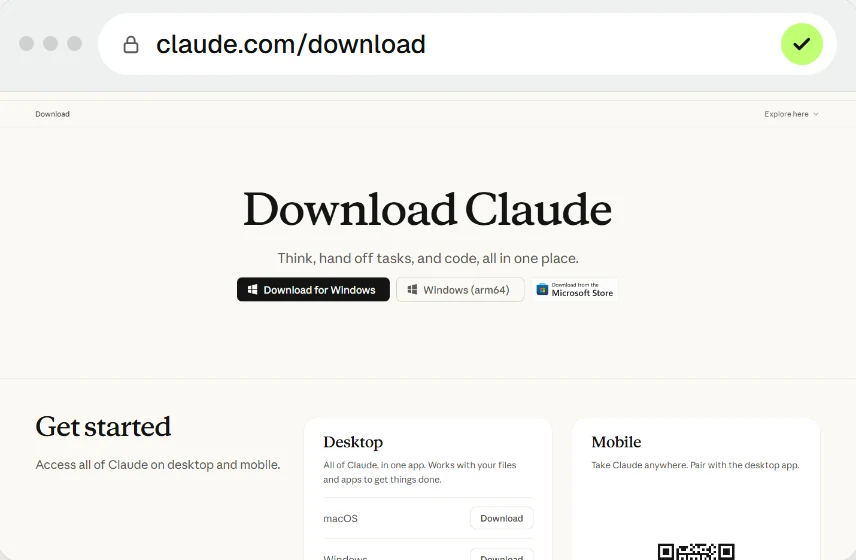
Download it the safe way
Type claude.ai into your browser's address bar. Don't click a Google result.
The top Google results are often ads for look-alike sites and fake installers.
- Phone: use the official App Store or Google Play listing.
- If the address isn't claude.ai or claude.com, close the tab.
- Never install from an ad, a video description or a link someone sent you.
Step 2 of 6
Create your account and install the apps
Sign up at claude.ai, then install the desktop app and the phone app.
The desktop app (Mac or Windows) is what lets Claude work with files on your computer. Turn on two-step verification where it's offered, since this account will hold your work.
Step 3 of 6
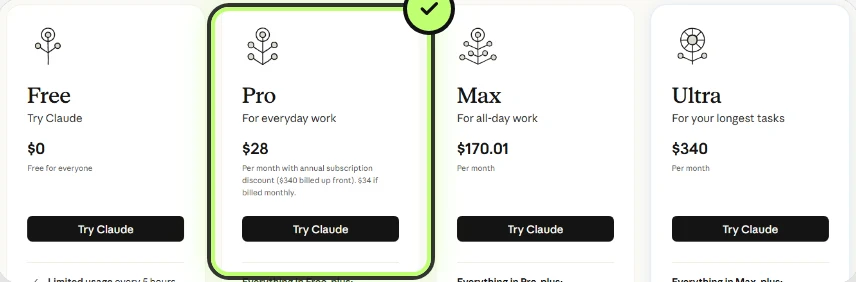
Choose a plan: start with Pro
Free is for trying it out. Pro suits most people. Max and Ultra are for heavy daily users who keep hitting Pro's limits.
Step 4 of 6
Change three settings
Three quick changes, about five minutes in total. They protect your privacy from day one.
Memory: switch on
Settings, then Memory. Claude remembers your job and preferences so you stop repeating yourself. You can read, edit or clear what it saved. Use an incognito chat for anything you don't want remembered.
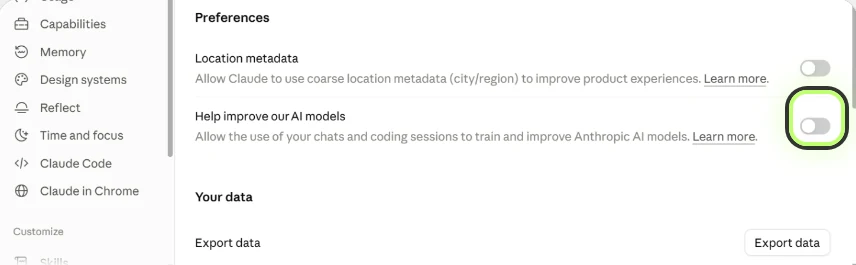
Training: switch off
Settings, then Privacy, then switch off "Help improve Claude". It's on by default for personal accounts, so you have to opt out yourself.
Thumbs up and down: skip
Anthropic says those buttons store the whole conversation for up to five years and may use it for training, even if you've opted out. Just tell Claude in the chat instead.
Step 5 of 6
Pick a model: start with Sonnet
Under the message box, tap the model name. Bigger means smarter but slower, and it uses more of your allowance.
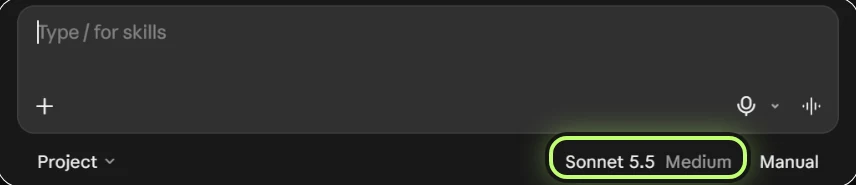
- Sonnet: the fast everyday choice, for most chats, emails and writing.
- Opus: for big, complex jobs. Switch to it when an answer isn't good enough.
- Haiku: the quickest, for simple jobs.
- Fable: the most powerful and the heaviest on your allowance. Most people won't need it.
Next to the model is an effort setting, from Low to Max. Leave it on the default and turn it up only for tricky problems.
Step 6 of 6
Try your first job: talk it all out
Don't try to write the perfect prompt. Tap the microphone and tell Claude everything on your plate.
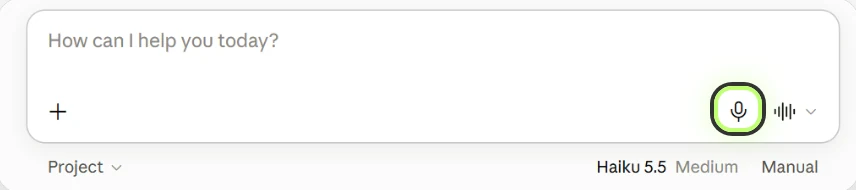
Talk about work, home admin, the jobs you dread and the ones you do on repeat. Then pick one small job and try it.
Prompt: what could you take off my plate?
Say it out loud, or type it
Here's what my week looks like, what I keep putting off, what drains me, and what I wish I had help with. Ask me questions, then tell me the three things you could take off my plate first and how.
Optional extras
When you're ready for more
You don't need any of this on day one. Come back when you've done a few jobs and want Claude to know more about you.
Cowork and Code: the two ways to use Claude
Same Claude. Switch between them at the top of the app. The difference is what you want to end up with.

- Cowork is for everyday work. Questions, writing, research, and whole tasks like a report, a spreadsheet or a tidy folder. It hands back files you can edit and asks before doing anything significant. Start here.
- Code is for building things that run, like a website, an app or a small tool. You describe it in plain English and you don't need to be a developer.
An answer, a document or tidy files? Use Cowork. Something that has to run? Use Code.
Connectors, skills and plugins
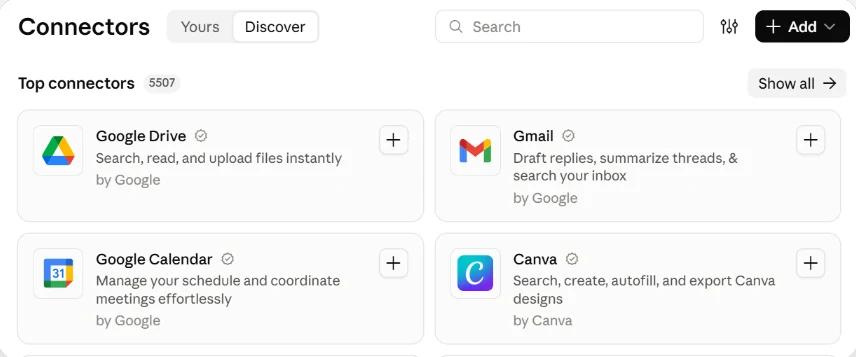
- Connectors give Claude access to your apps, like Gmail, Google Drive, Slack or your calendar. You sign in once and choose what it can do.
- Skills give it know-how, like a recipe card. "Write in my voice" is a skill.
- Plugins bundle both for a role, like sales or finance.
First move: connect your email and calendar. They give Claude the most useful context for the least effort.
Projects: stop pasting the same context
A project is a folder inside Claude for one ongoing topic. Add standing instructions and files once, and every chat in it already knows them.
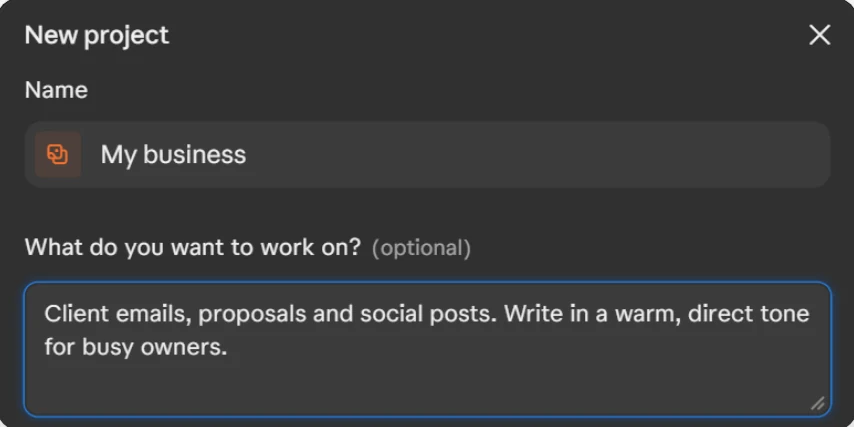
Make one for each thing you keep coming back to: a client, a course, a business, a job search. As of November 2026, free accounts get up to 5 projects and paid plans get unlimited ones.
Scheduled tasks: describe a job once, Claude repeats it
A morning briefing, a Monday report, a weekly tidy of your files. Available on paid plans as of November 2026.
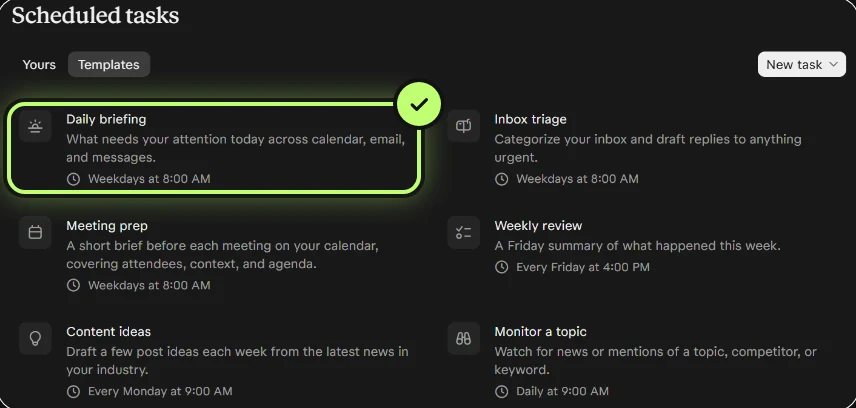
- You can see, pause or edit your tasks in the same place.
- Most tasks run in the cloud, so they still run when your computer is asleep. A task that needs files on your computer only runs while the desktop app is open.
- Watch the first few runs before you trust one.
Prompt: a weekday morning briefing
Needs your email and calendar connected
Every weekday at 7:30, summarise my calendar and the emails that need me.
Keep your own copy of your context
Keep your important information as plain files in one folder on your computer, and let Claude read from it.
If a tool ever changes, shuts down or raises its price, you walk away with everything and point the next tool at the same folder. Claude's memory is convenient, but this folder is your master copy. Put it in Documents or a synced drive so it's backed up, and give Claude access from the desktop app.
The AI Brain folder structure
Create these folders, or ask Claude to
AI Brain/
  About me/        who you are, your role, your goals, how you like to work
  Voice and style/ writing samples and notes on your tone
  Business/        offers, pricing, clients, processes, templates
  Projects/        one subfolder per active project
  Reference/       anything you'd otherwise have to re-explain
  Archive/         finished work
Start a task by saying "read my About me and Voice and style folders first". Ask Claude to add to the folder as you go.
Keep in mind
Three habits worth keeping
Check the work
Claude can be wrong and sound sure. Verify names, numbers and anything legal, medical or financial before you rely on it or send it.
Keep sensitive details out
No passwords, card numbers or ID numbers in chats or files. Only share the folders Claude needs.
One chat per topic
Very long chats get slower and less precise. Start fresh for a new subject.
Paid plans have an allowance that resets over time. Settings, then Usage, shows where you stand.
Check for yourself
Sources
Prices and menu names change, so check the official pages before you pay or change a setting. Everything in this guide was checked in November 2026.
Want Claude working across your business, not just your chats?
Setting up Claude is the easy part. Knowing what to hand it is where the time comes back. On a free 30-minute call, Megan will:
- name your biggest time leak
- give you an honest answer on whether working with Clockwise is the right fit
Google Meet, 30 minutes, no cost. Rather write first? Start a conversation.

About the author
Megan Hogan is the founder of Clockwise and works as a fractional COO inside small to medium businesses. She spent seven years at Optus and has led customer experience transformation and AI-enabled contact centre implementation.